Credit Card Statements in MyFam360 — How the Cycle Closes Itself
How MyFam360 materialises credit card statements automatically each cycle, what gets frozen, and when to use a manual statement entry instead.
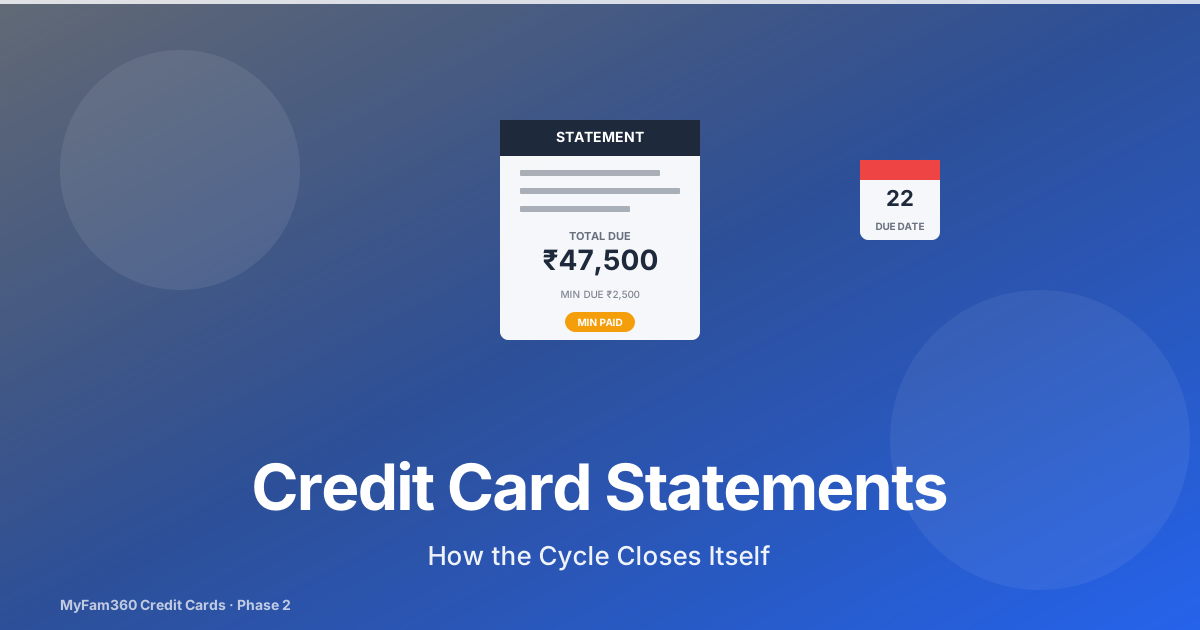
The most common reason people lose money on credit cards isn’t fraud or annual fees. It’s the minimum-due trap — paying just enough to keep the card current, while the rest of the balance revolves forward at 30–42% per annum interest. Six months of min-paying a ₹40,000 balance is enough to add ₹6,000 in finance charges to your year.
The MyFam360 statement view is designed to make this trap impossible to ignore. This post explains how statements work — what gets created automatically, what gets frozen, what gets warned about, and when you’d want to enter a statement manually.
If you haven’t added a card yet, start with the Credit Card Manager foundation post.
The Scheduler That Does the Work for You
MyFam360 runs a daily job at 02:00 UTC called materialize_statement_month. The job walks every active credit card in the database. For each card whose billing-cycle day matches today’s day-of-month, it does the following:
- Compute the cycle window — from the last cycle close (or card creation date if it’s the first cycle) to today.
- Sum expenses — iterate the mirror account’s expenses inside the window with a Python
Decimalaccumulator. (Critical Learning v1.43: never use SQLfunc.sum()overEncryptedDecimalcolumns — the values are encrypted at rest and SQL can’t aggregate ciphertext.) - Compute minimum due — using the issuer’s standard formula (typically 5% of statement balance plus any past-due amount).
- Insert a CreditStatement row — with
total_due,minimum_due,cycle_start,cycle_end,due_date, andstatus='open'. - Set
paid_amount=0initially.
The whole thing is idempotent: if today’s cycle has already been materialised, the job no-ops.
You don’t have to do anything. Open the app on the day after your cycle closes and the new statement is sitting there.
What a Statement Looks Like
The StatementView panel shows, per statement:
| Field | What it means |
|---|---|
| Cycle window | Cycle start → cycle end dates |
| Total due | Sum of all expenses inside the cycle |
| Minimum due | Issuer-formula min payment |
| Paid amount | Sum of all payments recorded against this statement |
| Status | open / min_paid / paid / overdue |
| Due date | Payment due day, projected from cycle close + grace period |
| Risk band | green / amber / red, based on due_date - today |
The two banners worth knowing:
Min-Paid Amber Banner
If paid_amount >= minimum_due and paid_amount < total_due, the statement status becomes min_paid and an amber banner appears showing the projected finance charge. The charge is computed using your card’s apr (or a default 36% if not configured) applied to the revolving balance for the cycle.
This banner is the single most important UI surface in the Credit Card Manager. Issuers print the minimum due in tiny text and the total due in large text, then hope you only look at one. MyFam360 puts the cost of choosing the wrong one in front of you.
Projected-Exhaustion Banner
If revolving the current balance forward plus your last-90-days spend pattern projects to push the card over its credit limit before the next cycle, a banner with the projected exhaustion date appears. This is useful when you’re already carrying a large balance and want to know how much headroom you have left before the issuer starts declining transactions.
When To Use Manual Statement Entry
There are two scenarios where the auto-materialised statement isn’t what you want:
Scenario 1 — Mid-Cycle Card Import
You add a card to MyFam360 on the 20th, but its billing cycle closed on the 15th. The auto-materialiser won’t run until next month. If you have the issuer’s actual statement (from the bank’s app or email PDF), you can enter it manually.
Tap Manual Statement on the card detail page. The form asks for:
- Statement month — normalised to YYYY-MM-01
- Cycle start and cycle end
- Total due and minimum due — copy from the issuer’s statement
- Due date
The flow rejects duplicate (card_id, statement_month) pairs, so you can’t accidentally create two statements for the same month.
Scenario 2 — Cycle Day Mismatch
Some issuers have variable cycle days (e.g., your statement might close on the 12th or the 14th depending on weekends). If MyFam360’s projected close date doesn’t match the actual issuer date, you can delete the auto-materialised statement and enter the real one manually.
Or — easier — adjust the card’s billing_cycle_day to better match the issuer’s average.
The Calendar Click-Through
The Calendar page renders a credit_due_date event on each card’s payment due date. Tapping that event on a desktop or mobile calendar opens the Record Payment modal directly, with the statement pre-loaded.
This is a small UX detail with a big effect: the most common journey through the app — “I got the SMS that my HDFC bill is due, let me pay it” — collapses from five taps to one.
Notifications That Hang Off Statements
Five credit-card events run on a dedicated dispatcher at 02:30 UTC (a few minutes after the materialisation job). Two of them are statement-driven:
credit_due_soon— fires T-3 days and T-1 day before due date for any statement still inopenormin_paidstatus.credit_overdue— fires T+1 day and T+7 days after the due date if status is still notpaid.
Both events are idempotent per (family_id, statement_id, event_key, dispatch_date), so you won’t get duplicate reminders for the same statement on the same day.
What Doesn’t Get Materialised
A few things deliberately don’t happen during materialisation:
- Annual fees — those are handled by a separate scheduler (covered in the annual fees post).
- Rewards — the rewards engine reads the underlying expenses live; rewards aren’t pre-computed and stored in the statement row.
- Promo offers — promo emails are handled by their own daily job (see the promo email post).
This separation matters because each of those subsystems has different idempotency and audit requirements. Bundling them all into one big “close the cycle” function would make every scheduler harder to reason about.
What This Means For You
The statement system in MyFam360 is mostly invisible when it’s working. You add a card, log expenses, and one day a statement appears showing what you owe.
The one moment to pay attention: when the amber min-paid banner appears. That’s the app telling you the issuer is about to make money off you. Either pay the rest of the balance, or look at the projected finance charge and decide consciously that revolving is worth it for this cycle.
See Also
Take control of your family finances — free
MyFam360 lets your whole family track expenses, set budgets, and hit savings goals together. Free to start, no credit card needed.
Free plan available · No credit card required · Cancel anytime
Frequently Asked Questions
Do I have to enter my credit card statement manually each month?
No. MyFam360 runs a daily scheduler at 02:00 UTC that materialises the previous billing cycle for every active credit card on its billing-cycle day, freezing the total due and minimum due. You only need to use Manual Statement entry if you want to record an issuer statement whose dates don't match what MyFam360 projected, or if you imported a card mid-cycle and want to backfill a real issuer statement.
What does 'materialising a statement' actually do?
On the billing-cycle day for a card, the scheduler walks the cycle window (last cycle day +1 to today), sums the expenses logged against that card's mirror account inside the window using a Python Decimal accumulator (not SQL aggregation, because amounts are encrypted), computes the minimum due using the issuer's standard formula, inserts a CreditStatement row with those frozen values, and marks the statement status as 'open'.
Why is the minimum due 'frozen' rather than recalculated?
Because the issuer's actual statement is a point-in-time document — what you owed on the cycle day, not what you owe today. If you log more expenses or record payments after the cycle closes, those affect the next cycle, not the closed one. Freezing the statement keeps it consistent with the issuer's printed statement and prevents historical statements from drifting as new data is added.
How do I see all statements for a card?
Open the Credit Cards page, tap the card you want, and the StatementView panel shows the most recent statement at the top with previous statements listed below in reverse chronological order. Each statement shows total due, minimum due, paid amount, payment status (open / min_paid / paid / overdue), and the due date. Tapping a statement opens its detail view with all the expenses included in the cycle.
What is the 'min-paid amber banner'?
If you've paid only the minimum due (not the full statement balance) and the statement is rolling forward, MyFam360 shows an amber warning banner with the projected finance charge for the next cycle. This is one of the more important visualisations in the app — issuers don't always make it obvious how expensive a min-paid revolve is, and the banner makes the future cost legible right inside the statement view.
What is the projected-exhaustion banner?
If revolving your current statement balance forward — combined with your typical monthly spend — would push the card over its credit limit before the next cycle, MyFam360 shows a projected-exhaustion banner with the date that's likely to happen. It uses your last 90 days of spend pattern as the projection input. This is mostly relevant when you're carrying a large revolving balance and want to know whether you have headroom left.
Share this article
Related Articles
How to Track Your Credit Cards in MyFam360 — The Foundation
Add credit cards to MyFam360 with joint cardholders, billing-cycle days, and an automatic account mirror that powers every downstream feature.
21 May 2026
App GuideAskAI History in MyFam360 — Pin, Re-Run, and Why the Cap Doesn't Reset
AskAI in MyFam360 now persists every question, lets you pin favourites, and supports one-click re-runs against current data. Here's how the history flow works.
21 May 2026
App GuideCredit Card Annual Fees and the 'Worth Keeping' Verdict in MyFam360
How MyFam360 charges and tracks annual fees automatically, and the Family+ 'Worth Keeping' verdict that tells you whether the card is paying for itself.
21 May 2026